 How-to
How to Troubleshoot Smart Dishwasher Connectivity Issues
Last Updated: November 21, 2026
Quick Summary
Smart dishwasher connectivity problems usually start at one of four layers: the appliance, the phone app, the home router, or the manufacturer's cloud. Identify which layer is failing before resetting anything, then run only the checks that apply. Most failures are network-related, so start by confirming the dishwasher is on a 2.4 GHz network with the correct password.
- Diagnose the failing layer first, since repeated resets rarely fix app or cloud failures.
- Many smart dishwashers support only the 2.4 GHz band, so disable band steering during setup.
- Re-enter the Wi-Fi password exactly, watching for case sensitivity and hidden spaces.
- Do not factory-reset the dishwasher for app or cloud failures; it erases network settings and schedules.
- Keep your phone within a few feet of the dishwasher during pairing so both use the same node.
Table of Contents
- Find Out Which Layer Is Failing: Appliance, App, Router, or Cloud
- Check Your Wi-Fi Network, Band, and Password First
- How to Connect Bosch Dishwasher to Wi-Fi
- Samsung Dishwasher Wi-Fi Connection Issues: Reset and Reconnect
- Reset Dishwasher Wi-Fi Connection and Restart Your Router
- Why the Smart Dishwasher App Is Not Connecting
- When to Call a Professional or Contact Support
- Keeping Your Dishwasher Connected After Setup
- Frequently Asked Questions
Find Out Which Layer Is Failing: Appliance, App, Router, or Cloud
Smart dishwasher connection problems can come from several layers: the appliance, the phone app, the home router, and the manufacturer's cloud service. Identifying which layer is at fault is a useful first step to restoring connectivity.
Start with the symptom you can actually see.
- The dishwasher never appears in the app during setup.
- The dishwasher appeared once but now shows offline.
- The app shows the dishwasher online but commands do nothing.
- The app itself will not load, sign in, or update.
Branch 1: The dishwasher never appears during setup.
This is almost always an appliance-to-router failure. Confirm the dishwasher is in pairing or access-point mode, its Wi-Fi or connection indicator should be flashing, not steady.
Branch 2: The dishwasher appeared once but now shows offline.
Check the router first. Are other smart devices still online?
Branch 3: The app shows the dishwasher online but commands do nothing.
This points to the app or the cloud, not the appliance. The dishwasher has a live connection to the router, but the command path from phone to cloud to appliance is broken.
Branch 4: The app will not load, sign in, or update.
This is a phone-side or account-side failure. Confirm the phone has working internet, the app has Wi-Fi and local-network permissions, and the account credentials are correct.
A quick layer test.
Turn the dishwasher's Wi-Fi off and back on from its control panel, then watch the app for 60 seconds.
What each layer's fix actually costs you.
- Appliance network reset: clears saved Wi-Fi credentials and pairing; you re-pair from scratch.
- App reinstall or account sign-out: clears app-side device cache; schedules stored in the cloud usually survive, but local-only settings may not.
- Router restart: brief outage for every device; no settings lost.
- Router settings change (band split, security mode): affects every device on the network, so restore defaults after setup.
- Cloud outage: nothing you can do locally; wait for the manufacturer to resolve it.
Check Your Wi-Fi Network, Band, and Password First
Most smart dishwasher connection failures are network-layer failures, not appliance failures, so checking the router before anything else is the fastest route to smart dishwasher connectivity.
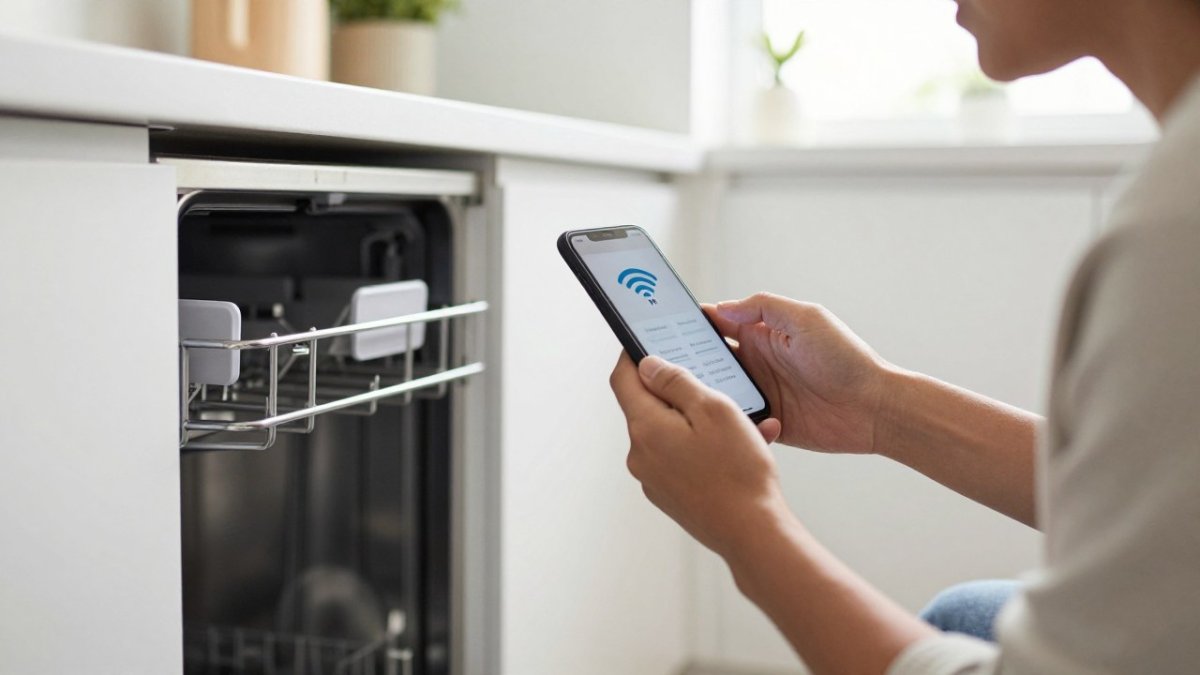
Work through these checks in order. Each one isolates a different network property.
1. Confirm a 2.4 GHz network is actually available.
Many routers ship with a single network name (SSID) that serves both 2.4 GHz and 5 GHz, a setup called band steering. The router decides which band each device gets, and it often pushes a device onto 5 GHz because that band looks "better" by signal strength. A dishwasher radio that only speaks 2.4 GHz cannot join a 5 GHz assignment, so pairing stalls or loops.
- If your router admin page shows separate 2.4 GHz and 5 GHz names, connect the dishwasher to the 2.4 GHz name explicitly.
- If it shows one combined name, look for a band-steering or "smart connect" toggle and turn it off during setup, or create a dedicated 2.4 GHz guest-style SSID for the appliance.
- If you cannot split the bands, move the dishwasher and phone close to the router during pairing so the router is more likely to assign 2.4 GHz.
2. Re-enter the password exactly, and check for hidden characters.
Wi-Fi passwords are case sensitive, and app keyboards sometimes autocapitalize the first letter or insert a trailing space.
3. Check the security mode.
If pairing fails, confirm the router's security mode is one the dishwasher's manual lists as supported, and consult the manufacturer's documentation for specifics.
4. Rule out guest networks and client isolation.
Guest networks often enable AP isolation, which blocks devices on the same network from talking to each other.
5. Check mesh behavior and signal at the install location.
Mesh systems hand devices between nodes, and some nodes broadcast only 5 GHz. A dishwasher in a kitchen corner may associate with a distant node or drop mid-pairing. Stand where the dishwasher sits and check the phone's Wi-Fi signal; if it is weak, add a node or a 2.4 GHz extender closer to the kitchen. During pairing, keep the phone within a few feet of the dishwasher so both use the same node.
6. Confirm the router is not blocking the appliance.
Parental controls, MAC filtering, and device-access schedules can silently block a new device. Check the router's connected-devices list after a pairing attempt: if the dishwasher never appears, the router is rejecting it before the app can finish setup.
Watch out: Do not change your router's security mode or disable band steering permanently just to pair one appliance, restore the original settings after setup, or every other device in the home inherits the weaker configuration.
Before resetting anything, these are the network properties to confirm, in order.
| Check | What to do | Why it matters |
|---|---|---|
| 2.4 GHz band | Connect to the 2.4 GHz network name | Many smart dishwasher radios support only 2.4 GHz |
| Band steering | Turn off smart connect during setup | Router may push the appliance onto 5 GHz |
| Password | Type it in notes, then paste | Passwords are case sensitive; hidden spaces break joins |
| Client isolation | Put phone and dishwasher on the same SSID | Guest networks often block device-to-device traffic |
| Signal | Keep phone near the dishwasher while pairing | Mesh nodes may hand the appliance to a distant node |
| Access controls | Check parental controls and MAC filtering | Routers can silently block a new device |
How to Connect Bosch Dishwasher to Wi-Fi
Bosch dishwashers connect through the Home Connect app. The steps below are a general pattern, and your model's manual has exact button names.
- Install the Home Connect app and create or sign in to your account.
- Make sure your phone is on the same 2.4 GHz Wi-Fi network you want the dishwasher to use.
- In the app, choose to add a new appliance and select a dishwasher.
- Follow the prompts to put the dishwasher into connection mode. This usually means holding a specific button until a light flashes.
- Scan the QR code on the appliance or enter the code manually.
- Wait for the confirmation message. Setup can take several minutes.
If setup fails, restart the dishwasher, reopen the app, and try again. Make sure your phone's Bluetooth is on, since some Bosch models use it during setup.
Samsung Dishwasher Wi-Fi Connection Issues: Reset and Reconnect
Samsung dishwashers use the SmartThings app. When a Samsung model stops connecting, a reset may help.
- Open SmartThings and remove the dishwasher from your device list.
- Turn the dishwasher off, then back on.
- Put the dishwasher into pairing mode using the control panel. Look for a Wi-Fi or Smart Control button and check the status indicator.
- Add the device again in SmartThings and select your 2.4 GHz network.
- Enter your Wi-Fi password carefully.
Watch out: Removing and re-adding the dishwasher erases its saved schedules. Write down any custom cycles before you start.
Reset Dishwasher Wi-Fi Connection and Restart Your Router
Sometimes the fastest fix is a power cycle of both devices. This clears temporary network errors.
- Unplug the router for 30 seconds, then plug it back in. Wait until its internet light is steady.
- Turn off the dishwasher at the wall or circuit breaker for one minute, then turn it back on.
- Reconnect the dishwasher through its app.
Only perform a network reset if the simpler steps fail. A full reset removes all saved Wi-Fi settings on the appliance, so you will need to set everything up again. If you have tried resetting and still can't connect, you may want to consider a discounted new KitchenAid dishwasher with a warranty instead. Do not run a reset during a wash cycle.
Why the Smart Dishwasher App Is Not Connecting
When the appliance is online but the app cannot reach it, the problem is usually on the phone side.
- Update the app. Outdated versions often fail to find new devices.
- Check phone permissions. Allow the app to use Wi-Fi, Bluetooth, and local network access.
- Turn off airplane mode. Confirm your phone is actually on Wi-Fi, not cellular data.
- Sign out and back in. A stale login can block device control.
- Check the account. Make sure the dishwasher is linked to the account you are using.
A common mistake is installing the app on a second phone, then wondering why the dishwasher does not appear. Each account controls its own devices.
When to Call a Professional or Contact Support
Call the manufacturer's support line if you have tried each step above and the dishwasher still will not connect. If you are weighing whether a fault justifies professional help, you may find it useful to read about troubleshooting refrigerator ventilation problems as a comparable repair decision. Also call if the display shows an error code you cannot find in the manual, or if the dishwasher will not power on.
Before you call, have ready:
- The model and serial number, found on the door edge or inside the tub
- Your router brand and whether it runs 2.4 GHz
- The exact error code or light pattern
- The steps you have already tried
If the appliance shows signs of electrical damage, stop using it and contact a licensed technician.
Keeping Your Dishwasher Connected After Setup
Once the dishwasher connects, a few habits keep it online:
- Keep the router firmware updated.
- Avoid changing your Wi-Fi password without updating the appliance.
- Place the router where its signal reaches the kitchen.
- Check the app's connection status every few months.
A quick checklist:
- Dishwasher on 2.4 GHz network
- Password confirmed
- App updated and signed in
- Router restarted
- Support contact saved
Need a dishwasher that connects easily? Fast Appliances LLC carries a range of built-in models. Browse our Samsung built-in dishwasher, a new open-box unit with a 1-year warranty. Pricing depends on the model and current stock, so check the listing for the latest price and delivery date. Need help choosing? Fast Appliances LLC can point you to the right fit.
Frequently Asked Questions
Why does my smart dishwasher keep saying it cannot connect to the internet?
This message usually means the dishwasher has lost its link to your home router or the cloud service. Start by confirming your Wi-Fi password is current and that the network is a 2.4 GHz band, since many dishwashers do not join 5 GHz networks. Then restart the dishwasher and your router, and confirm other devices in the home can get online. If the appliance still fails after a clean reset, check whether the manufacturer's service has an outage listed on its support page.
Can I use a smart dishwasher without its app?
In most cases you can run the dishwasher from its control panel even when the app is not connected, because the basic wash cycles do not depend on Wi-Fi. What you lose is remote start, cycle notifications, and app-based diagnostics. If the app will not connect, the dishwasher still works as a normal appliance while you troubleshoot the network or account.
How do I reconnect my dishwasher to Wi-Fi after changing my router?
A new router usually has a new network name or password, so the dishwasher must be set up again on the new network. Put the dishwasher into pairing or access-point mode using its Wi-Fi button, then open the manufacturer's app and add the appliance, selecting the new network. Keep your phone on the same network during setup and scan the appliance QR code if the app asks for it.
Why does my dishwasher connect to Wi-Fi but not the app?
When the appliance shows as online but the app cannot control it, the problem is usually the app or account rather than the Wi-Fi link. Check that you are signed in to the correct account, that the app has permission to use local network access and Bluetooth, and that the app is updated. Removing the dishwasher from the app and adding it again often clears a stale pairing.